Published:
IPTV Not Working? 9 Common Fixes That Work 2026
IPTV not working? Here are the causes of buffering, black screen and empty channel lists – with step-by-step fixes. Test a stable service free.
Quick answer
IPTV not working? In the vast majority of cases it comes down to one of four things: a weak or unstable internet connection, incorrect login details (M3U link or Xtream Codes), an app or EPG setting that has hung, or an expired subscription. The fastest fix is to speed-test the connection, restart the device and router, confirm the login is pasted exactly, and reload the playlist. If that does not solve it, the fault usually sits on the provider's server – which is why choosing a stable service with 24/7 support matters.
Key points
- Most common cause: the connection. HD needs ~25 Mbps, 4K at least 50 Mbps – test the speed on the same device that is failing.
- Empty channel list: almost always a wrong M3U URL/Xtream Codes or a subscription that has not yet activated.
- Black screen or audio with no video: usually a codec/decoder issue (H.265 HEVC on older hardware) – switch the decoder or channel version.
- Buffering despite fast internet: congested Wi-Fi, the wrong band (use 5 GHz or Ethernet) or a weak provider server.
- Fastest route to a stable picture: a reputable service with strong CDN infrastructure, ideally via a free trial.
IPTV not working – and the match has already kicked off? It is one of the most frustrating problems there is, but the good news is the fault is almost always quick to find and fix. The short answer: when IPTV is not working, it usually comes down to your connection, your login details, an app setting or your subscription – rarely anything that needs a technician. In this guide we walk through the nine most common faults, one at a time, with a clear cause and a concrete fix you can try right away on your smart TV, IPTV box, Fire TV Stick or phone.
We take it methodically, from the simplest (restart and speed-test) to the more specific (codec errors, EPG problems and device-specific quirks on Samsung Tizen and LG webOS). You also get a quick diagnostic table, a step-by-step troubleshooting routine and answers to the most common questions. The goal is that after this article you both know why your IPTV is not working right now and how to get the picture back – and if the problem turns out to be a flaky provider, you can test a more stable service with Nordisc IPTV at any time.
Contents
- What does it mean when IPTV is not working?
- Why is IPTV not working? The most common causes
- How to fix IPTV that is not working – step by step
- Quick diagnostic table: symptom, cause and fix
- The 9 most common IPTV not working faults
- Troubleshooting by device: smart TV, box, stick and phone
- Pros and cons of IPTV from a reliability standpoint
- Frequently Asked Questions about IPTV not working
- Conclusion
What does it mean when IPTV is not working?
When IPTV is not working it means the chain from the provider's server to your screen has broken somewhere – but "not working" is an umbrella term for very different symptoms. Everything from buffering and a black screen to an empty channel list and a wrong programme guide fits the phrase, and each symptom points to a different cause. Knowing which fault you actually have is half the solution.
To understand what can go wrong, it helps to remember how the technology fits together. IPTV (Internet Protocol Television) takes a TV channel or video file, compresses it with a codec such as H.264 or H.265 (HEVC), splits it into IP data packets and sends them via servers and a CDN over your broadband. Your IPTV app or box receives the packets through an M3U playlist or an Xtream Codes API, decodes them and draws the picture – while an EPG (programme guide in XMLTV format) loads in the background. If you want the full mechanics explained, we have a separate walkthrough of how IPTV works step by step, and a more basic introduction to what IPTV actually is.
The point is that there are many links where things can break: the connection that carries the packets, the login that grants access, the app that decodes, or the provider's server that feeds the stream. When IPTV is not working, troubleshooting is about quickly identifying which of these links is failing. The rest of this guide is ordered so that you start with the most common and simplest causes and work your way down to the more specific ones.
One thing worth stating up front: IPTV as a technology is stable and proven – the same technology powers SVT Play, TV4 Play and Viaplay. So IPTV not working rarely means something is fundamentally broken; it means one specific link in the chain needs adjusting.
No commitment · no credit card
Why is IPTV not working? The most common causes
Why is IPTV not working most of the time? In nine cases out of ten the explanation is one of four: an insufficient or unstable internet connection, incorrect or expired login details, an app/EPG setting that has hung, or a problem on the provider's side. Knowing this order of priority saves time – you test the most likely cause first.
Let us break down the four main categories, because nearly every concrete fault further down this guide belongs to one of them:
- The connection. By far the most common cause. IPTV streams continuously, so even brief speed dips show up as buffering or stutter. Wi-Fi on 2.4 GHz, many devices on the same network, or a weak signal in another room is enough to make the picture unstable. HD needs roughly 25 Mbps, Full HD around 25–35 Mbps and 4K UHD at least 50 Mbps.
- Login and account. A mis-pasted M3U URL, the wrong username in Xtream Codes, or an expired subscription produces an empty channel list or a login error. A couple of minutes of checking solves most of it here.
- App and settings. An outdated app version, an EPG that has not loaded, the wrong decoder for the codec, or a cache that needs clearing. These are "soft" faults that can almost always be fixed in the app's menus.
- The provider. If the server or CDN is overloaded – typically during a Champions League night or an Allsvenskan derby – even a perfect connection will buffer. This is where the difference between a reputable and a flaky service shows up most clearly.
That last point is worth dwelling on. In our tests it is precisely server capacity under heavy load that decides whether a service feels stable. A provider with weak infrastructure can run fine on a quiet Tuesday evening but collapse when thousands of viewers all want the same match. If your IPTV is not working repeatedly during big broadcasts while your connection is fine, that is a strong sign the problem sits with the provider rather than with you. It can then be worth comparing alternatives in our guide to the best IPTV in Sweden or simply trying a more stable service for free.
How to fix IPTV that is not working – step by step
How do you troubleshoot when IPTV is not working without guessing blindly? Follow this order from top to bottom. It is deliberately sorted so the fastest and most common fixes come first – in practice most cases are solved at step one to three. Stop as soon as the picture returns.
- Test your internet connection. Run a speed test (for example via Ookla Speedtest) on the same device that is failing, not on a phone in another room. Confirm you have at least 25 Mbps for HD and 50 Mbps for 4K, and that the speed is steady rather than jumping around.
- Restart everything. Close the app completely (not just minimise it), restart the device and unplug the router for 30 seconds. A restart clears temporary faults and resolves a surprisingly large share of all "IPTV not working" situations.
- Check the login details. Open the playlist settings and verify that the M3U URL or Xtream Codes (server URL, username, password) match the welcome email exactly, with no extra spaces or clipped characters.
- Reload the playlist and EPG. Force a refresh of the channel list and the programme guide in the app. A stale or half-loaded EPG produces empty lists and wrong broadcast times.
- Switch the decoder or channel version. For a black screen or audio with no video, toggle between hardware and software decoding in the app's playback settings, or pick an H.264 version of the channel if the device is older.
- Test on another device. If the service works on the phone but not the TV, the fault is in the TV/app. If it works nowhere, that points to the connection or the account.
- Check the subscription status. If the plan has expired, everything stops working. Log in to your account or ask support to confirm the subscription is active.
- Contact support. If the problem persists, get in touch. One of the biggest advantages of a reputable provider is 24/7 support – with Nordisc IPTV you reach help any time, and more answers are also in our frequently asked questions section.
In our tests this order resolves the overwhelming majority of all cases. The trick is not to skip the boring first steps – it is nearly always the connection or a restart that is to blame, not anything complicated.
Activated within 5 minutes
Quick diagnostic table: symptom, cause and fix
Need to cut straight to it? This table links each common symptom to its most likely cause and the fastest action. Use it as a reference – find your symptom in the left column and start with the suggested fix before digging deeper into the sections below.
| Symptom | Likely cause | Quick fix |
|---|---|---|
| Picture buffers/stutters on all channels | Weak or congested connection | Ethernet or 5 GHz Wi-Fi, lower the resolution, close other devices |
| Empty channel list after login | Wrong M3U/Xtream Codes or unactivated account | Re-paste the details, wait, reload the playlist |
| Black screen but audio plays | Codec/decoder error (often H.265 on older hardware) | Switch the decoder (hardware/software) or H.264 version |
| Single channel freezes, others fine | Temporary outage in that channel's source | Switch to an alternative version of the channel, wait a moment |
| Empty or wrong programme guide | EPG (XMLTV) not loaded or mis-mapped | Force an EPG refresh, reload the playlist |
| "Login failed" | Wrong details or expired subscription | Verify the account, check the plan length, contact support |
| Everything stopped working at once | Account expired or server maintenance | Check the subscription status, ask support |
| Slow app, slow channel switching | Underpowered device or full cache | Clear the cache, restart, consider a faster box |
| Works at home but not abroad | Geo-block or ISP blocking at the destination | Use the service's built-in privacy protection/VPN |
The table covers the patterns we see most often. Note that several symptoms can share the same root cause – buffering and freezing channels both often come down to bandwidth or the server. For a deeper look at how bandwidth and data usage relate to quality, see our guide to the IPTV world in 2026.
The 9 most common IPTV not working faults
Here we go through the nine faults we see most often, with a detailed cause and concrete fix for each. If the quick table above was not enough, you will find the full troubleshooting here. They are ordered roughly by how common they are, so start from the top.
Fault 1: The picture buffers or stutters constantly
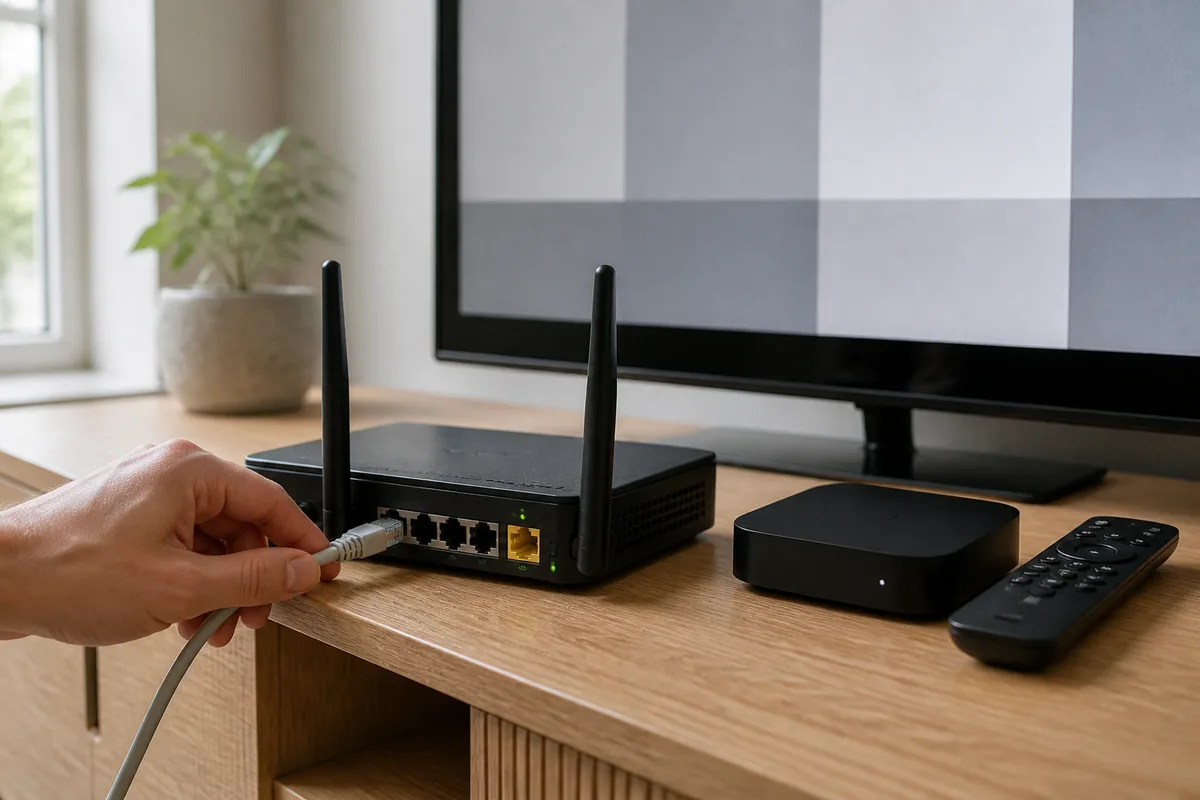
Cause: insufficient or unstable bandwidth. IPTV streams continuously, so even short dips show up. Common culprits are Wi-Fi on 2.4 GHz, too great a distance from the router, many devices sharing the network, or a resolution too high for the connection.
Fix: connect the device with wired Ethernet if you can – it is the single most effective measure. If you cannot, switch to the 5 GHz band and move the device closer to the router. Lower the resolution a notch in the app, close downloads and other streaming devices, and restart the router. If it buffers on all channels the fault is almost always the connection; if only individual channels buffer it is the source (see Fault 4).
Fault 2: Empty channel list after login
Cause: an incorrect M3U URL or Xtream Codes, or a subscription that has not yet activated. A single extra space, a missing character or the wrong port number in the server URL is enough.
Fix: open the playlist settings and re-paste the details straight from the welcome email rather than typing them out by hand. Confirm that the server URL, username and password match exactly. If you have just purchased the subscription, wait a few minutes and reload the playlist – activation can take a short while. If that does not help, ask support to confirm the account is active and the details are correct.
Fault 3: Black screen but audio plays (or vice versa)
Cause: the device lacks support for the codec. The most common case is older hardware that cannot handle H.265 (HEVC), which many 4K streams use. Sometimes it is instead the wrong audio track selected, or a misbehaving playback engine.
Fix: go to the app's playback settings and switch the decoder – most apps (IPTV Smarters Pro, TiviMate, IBO Player) offer both hardware and software decoding. Try both. On older devices you can pick an H.264 version of the same channel if the provider has one. If you get video but no sound, change the audio track in the playback menu.
Fault 4: A single channel freezes while others work
Cause: that channel's stream or source server has a temporary outage. The fact that the rest of the line-up is stable is a clear sign the fault is in the source, not your equipment or connection.
Fix: switch to an alternative version of the channel if the provider has several (often labelled "FHD", "SD", "Backup" or with a country code). Otherwise wait a moment – temporary source outages usually resolve themselves. If the problem recurs on the same channel day after day, report that specific channel to support so they can switch the source.
Fault 5: The programme guide (EPG) is empty or shows wrong times
Cause: the EPG source in XMLTV format has not loaded, is outdated, or is not correctly mapped to the channels. This affects only the guide – the channels can play perfectly even with a broken EPG.
Fix: go to the app's EPG settings and force a refresh. In TiviMate and IPTV Smarters Pro you can re-map the EPG source manually and set the time zone, which fixes wrong times. A full reload of the playlist often restores the whole guide. If you use Xtream Codes, the EPG is normally fetched automatically – then a reload usually does it.
Fault 6: "Login failed" or an error code at startup
Cause: wrong login details, an expired subscription, or the maximum number of simultaneous connections reached (if you have logged in on more devices than the plan allows).
Fix: check the details against the welcome email and that the plan length has not run out. Log out of devices you are not using. If the error remains despite correct details, contact support – it may be a server-side account issue only they can resolve.
Fault 7: IPTV stopped working entirely, all at once
Cause: usually an expired subscription, a locked account, or planned/emergency server maintenance at the provider. Less often, a larger network outage at your internet provider (Telia, Tele2/Comhem, Telenor, Bahnhof).
Fix: first check the subscription status and renew if needed. If your internet otherwise works (you can browse and stream other things) but IPTV does not, it is probably the provider's server – ask support about the service status. If the whole connection is down, you must wait until your ISP resolves the outage.
Fault 8: The app is slow, crashes or switches channels slowly
Cause: an underpowered device, a full cache, an old app version or too little internal memory (common on cheap sticks). Slow channel switching often comes from a large EPG list combined with weak hardware.
Fix: clear the app's cache, update to the latest version and restart the device. If that does not help and the device is old, a faster Android TV box or a newer Fire TV Stick can give a noticeably smoother experience. More on how different devices handle IPTV is in our overview of the best IPTV apps.
Fault 9: Works at home but not abroad
Cause: geo-blocking, or the hotel's/country's internet provider blocking certain ports. For Swedes abroad this is a classic problem when you want to watch SVT, TV4 and Allsvenskan while travelling.
Fix: use the service's built-in privacy protection. Nordisc IPTV includes VPN/privacy protection, which helps when local networks misbehave. At the same time, keep in mind that the EU's cross-border portability regulation (2017/1128) grants the right to take legally purchased services on trips within the EU. We cover the abroad angle in depth in our guide to Swedish IPTV while travelling.
Support team available 24/7
Troubleshooting by device: smart TV, box, stick and phone
Why is IPTV not working on my particular device? Different devices have different weak spots: the smart TV may have an outdated app, the stick may be underpowered, and the box may simply need a restart. This table summarises the most common device-specific problems and how to solve them, so you can quickly see where your screen tends to get stuck.
| Device | Most common fault | Solution |
|---|---|---|
| Samsung Tizen / LG webOS smart TV | App will not start or lacks an update | Reinstall the app, update the TV's firmware, check codec support |
| Android TV box | Slow app, EPG will not load | Clear the cache, update the app, restart the box |
| Fire TV Stick | Buffering, app crashes | Free up internal memory, use 5 GHz, reinstall the app |
| Apple TV | Channel will not play, decoder error | Switch the playback engine in the app, update tvOS |
| Chromecast with Google TV | Unstable picture at 4K | Use stronger Wi-Fi or an Ethernet adapter |
| Phone/tablet | Stutters on mobile data | Switch to Wi-Fi or lower the resolution in the app |
A couple of device-specific tips beyond the table: on Samsung Tizen and LG webOS the most common fault is an app that has not been updated – uninstall and reinstall it from the Tizen Store or the LG Content Store respectively. On the Fire TV Stick the limited internal memory is often to blame; clear data and close background apps. And whatever the device: a cold restart (unplug the power completely for 30 seconds) fixes more device faults than anything else. If you want to compare which subscription and features suit you best, there is more in our overview of IPTV subscription options.
One final observation from our tests: when IPTV is not working on one device but perfectly on another, it is almost without exception the device or its app that is at fault – not the service. You then save time by focusing the troubleshooting on that specific device rather than switching providers.
Pros and cons of IPTV from a reliability standpoint
How reliable is IPTV really, and what should you know before writing off a service as "broken"? Because IPTV is built on the internet, it inherits both the strengths and the weaknesses of all streaming. Here is an honest summary from a stability and troubleshooting angle.
Pros
- Most faults are easy to fix yourself – connection, restart and login cover the majority of all problems and need no technician.
- Built-in error correction – adaptive bitrate automatically lowers the resolution on a weak connection instead of freezing entirely, making small disruptions almost invisible.
- Flexible troubleshooting – if you can test on another device (phone, tablet, box) you quickly isolate whether the fault is in the hardware or the service.
- 24/7 support – with a reputable provider you reach help at any time, which makes even account-related faults quick to resolve.
- No physical installations to break – no dish to realign or cable that can be cut; everything happens in the app and the network.
Cons
- Dependent on the connection – without stable bandwidth the picture buffers, and problems at your ISP affect the service directly.
- Quality depends on the provider – weak server capacity or a poor CDN causes buffering under heavy load, no matter how good your own connection is.
- A certain technical threshold – terms like M3U, Xtream Codes and EPG mapping can feel unfamiliar the first time something goes wrong.
- Device-dependent codec support – older TV apps can lack H.265/HEVC, which gives a black screen on certain channels.
The conclusion from our tests: when a service feels unreliable, it is surprisingly often the connection or the device – not the IPTV service itself. But when the problem genuinely sits with the provider's infrastructure, the choice of service matters a great deal. That is when a strong, well-staffed provider like Nordisc IPTV differs from a cheap service that collapses at the first big broadcast. The full plan lengths and prices are shown openly on our pricing page.
Start streaming in 5 minutes
Frequently Asked Questions about IPTV not working
Why is my IPTV suddenly not working?
If IPTV stops working suddenly, it is usually due to an expired subscription, server maintenance at the provider, or a temporary outage in your internet connection. First check whether you can browse and stream other things – if the internet otherwise works but IPTV does not, it is probably the account or the provider's server. Restarting the device and router solves many sudden faults.
What is IPTV and how does it work?
IPTV (Internet Protocol Television) is TV streamed over the internet instead of cable, satellite or an aerial. A TV signal is compressed with a codec, split into IP data packets and sent via servers to your app or box, which reassembles the picture in real time. You access the channels through an M3U link or Xtream Codes. A deeper explanation is in our guide to how IPTV works.
How do you get IPTV that actually works?
Choose a reputable provider with a transparent line-up, 24/7 support and a trial period so you can test stability before committing. Download an IPTV app (IPTV Smarters Pro, TiviMate, IBO Player or Smart IPTV), log in with your M3U link or Xtream Codes, and make sure your connection handles at least 25 Mbps for HD. With Nordisc IPTV you can activate a free trial right away.
How much does IPTV cost at Nordisc IPTV?
At Nordisc IPTV the subscription costs 179 kr for 1 month, 379 kr for 3 months, 499 kr for 6 months and 799 kr for 12 months. There is no lock-in contract, activation is instant, and you can test the service via a free trial before choosing a plan length. The current prices are always on the pricing page.
Which IPTV is best if you want to avoid problems?
The best IPTV service for avoiding faults is one with strong server infrastructure and a CDN, because it is server capacity under heavy load that decides whether the picture holds during, say, a Champions League night. Look for 24/7 support, a trial period and transparency about the line-up. Our guide to the best IPTV compares the alternatives in more detail.
Why does my IPTV buffer even with fast internet?
Buffering despite fast internet often comes from congested Wi-Fi (too many devices or the 2.4 GHz band), too great a distance to the router, or a weak server at the provider. Try wired Ethernet or 5 GHz Wi-Fi and close other streaming devices. If the buffering persists only during big broadcasts, it is probably the provider's server capacity that is not enough.
Will the IPTV box work if the app will not start?
If the app will not start on an IPTV box, begin with a cold restart: unplug the power for 30 seconds. Then clear the app's cache and update it to the latest version in Google Play. If that does not help, uninstall and reinstall the app. On older or cheap boxes, too little internal memory can stop apps from starting – then a faster box can fix the problem permanently.
Conclusion
IPTV not working – but now you know why, and what to do about it. In the vast majority of cases it comes down to one of four things: the connection, the login details, an app or EPG setting, or an expired subscription. By troubleshooting in the right order – speed-test, restart, check the login, reload the playlist and EPG, switch the decoder and finally check the account – you solve the overwhelming majority of all problems in a few minutes, whether you are on a Samsung TV, a Fire TV Stick or a phone.
When you have worked through that order and the picture is still unstable, especially during big broadcasts, it points to the provider's infrastructure rather than to you. That is the moment to switch to a service built to hold up under load. To go from troubleshooting to a stable picture, we recommend starting with Nordisc IPTV and comparing the line-up and plan lengths yourself on the pricing page – or simply starting a free trial and seeing right away whether your IPTV works as it should on your own channels and your own connection.
Nordisc IPTV helps households in Sweden and Swedes abroad watch SVT, TV4, Allsvenskan and SHL with a stable picture on any device. Our support team is available 24/7 for setup, troubleshooting, and subscription questions.